
Business Wi-Fi Hub 2: Setup Guide
Business Wi-Fi Hub 2 setup made simple, step by step
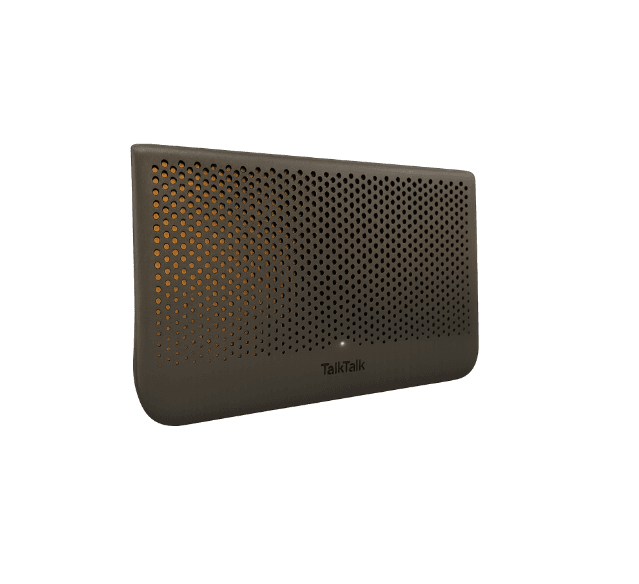
Check out the steps below to get started, or for full instructions, view our guide.
Ready to get connected?#
Just follow the steps below. The instructions for a master phone socket or a pre-filtered phone socket are for Business Broadband or Business Fibre connections. If you have a Business Full Fibre connection, follow the instructions for full fibre.
If you have a master phone socket…#
Connect the micro-filter provided to your master phone socket. You need to use a micro-filter for every phone socket in your office with any phone or broadband equipment plugged into it.
Plug one end of the broadband cable provided into the socket labelled DSL on your micro filter and the other end of the broadband cable into the Broadband socket on the back of your router
Plug your phone line into the socket labelled Phone on your micro-filter
If you have a pre-filtered phone socket...#
Plug one end of the broadband cable provided into the broadband socket of your pre-filtered phone socket and the other end of the broadband cable into the Broadband socket on the back of your router
Plug your phone line into the same wall phone socket as your Broadband cable
You need to use a micro-filter for every phone socket in your office with any phone or broadband equipment plugged into it.
If you have a Full Fibre connection...#
Ensure the Network Terminating Equipment (NTE) is powered on. The NTE may be white or black.
Use the ethernet cable provided to connect the NTE to the WAN port on the Hub
Time to switch on#
Push the power button on the back of the Hub. An LED light on the front of the Hub indicates that it's switched on.
Insert the power cable into the Hub and the plug into the wall. Turn on the switch.
Keep your Hub upright and facing into the room for the best signal
Note: the powering on sequence may take some time to begin with.
And to connect your devices...#
How you connect varies from one device to the next (check the manufacturer's instructions), but generally you:
Go to settings and turn on Wi-Fi
Click on your Wi-Fi network name (you'll find it on the Wi-Fi settings sticker on the back of your Hub)
Enter the password from your Wi-Fi settings sticker (the password and username may be case sensitive)
Click on join or connect